Rocket League Controller Not Working Troubleshooting Input And Connection Issues
5 October 2026 | 66
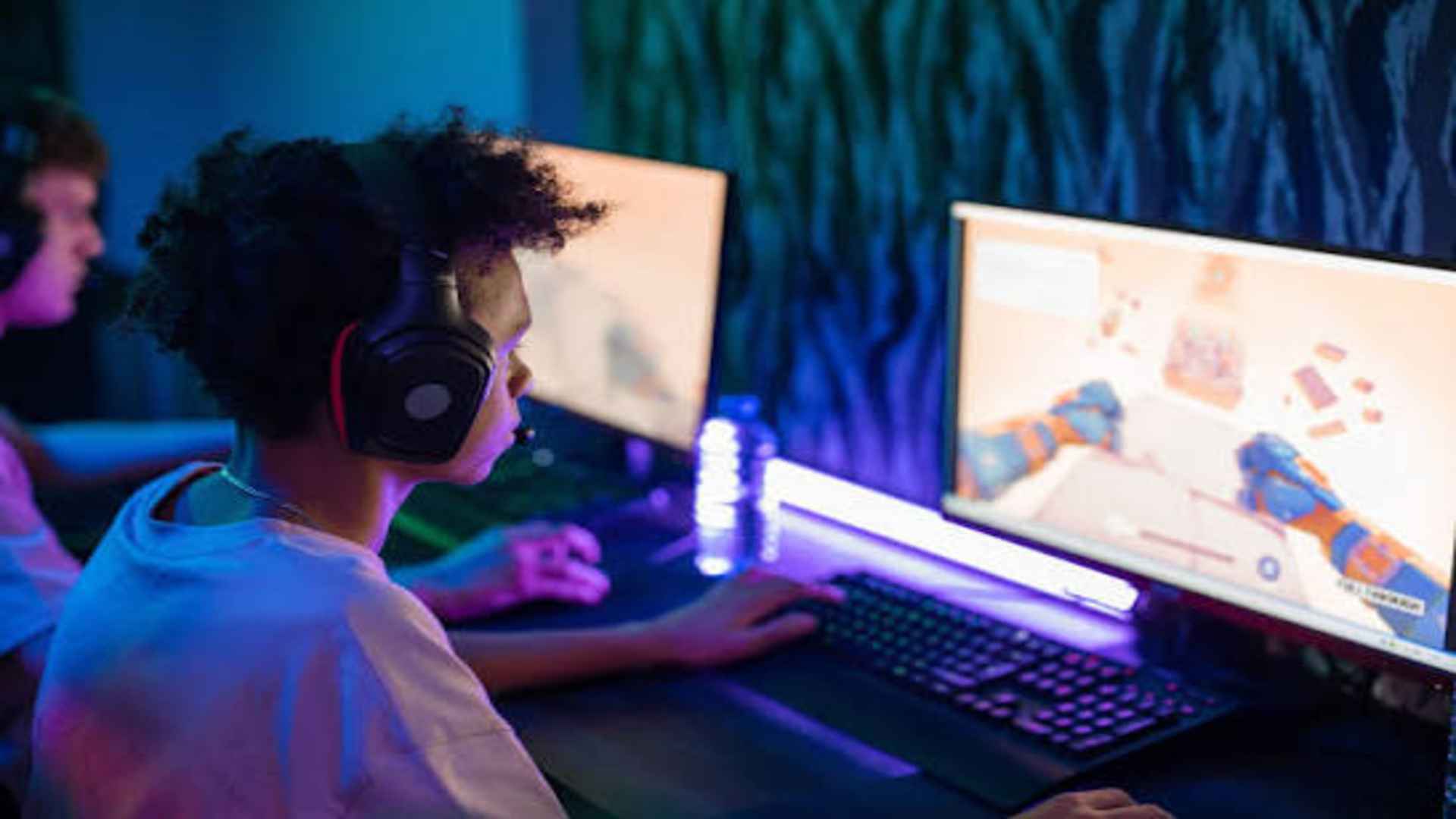
Experiencing input recognition failures while playing Rocket League can instantly ruin a competitive match. Controllers often stop responding due to driver conflicts, Steam overlay settings, or physical cable faults. Understanding how to diagnose these connection bottlenecks helps players restore precise car control quickly.
Checking Physical Connections and Wireless Signals
Before modifying software settings, inspect the physical hardware setup connecting your controller to the system. Faulty USB cables or damaged ports frequently interrupt communication between the device and your PC. Switching to a direct USB port on the motherboard can instantly resolve sudden connection drops.
For wireless users, Bluetooth interference often causes high latency or unregistered button presses. Ensure no heavy wireless signals or physical barriers block the line of sight to your Bluetooth adapter. Testing the controller with a wired connection helps determine whether the battery or Bluetooth chip is at fault.
Configuring Steam Controller Input Settings
Steam offers deep controller configuration options, but misconfigured profiles often lead to double inputs or complete unresponsiveness. Open the Steam settings menu and navigate to the controller configuration tab to enable or disable Steam Input for generic devices. Customizing these settings ensures your specific gamepad layout is properly translated by the game engine.
If Rocket League runs through the Epic Games Launcher, launch Steam in the background or add the launcher as a non-Steam game to utilize Steam's robust driver support. Toggling the Steam Input option specifically for Rocket League in your library often fixes unrecognized devices. This step resolves most driver translation conflicts automatically.
Updating Controller Drivers and System Software
Outdated device drivers frequently prevent modern gaming titles from detecting connected gamepads correctly. Access the Device Manager in Windows to verify if your controller appears under human interface devices with any warning icons. Uninstalling the device and reconnecting it forces the operating system to install a fresh driver package.
Firmware updates from official manufacturer software, such as Xbox Accessories or Sony DualSense apps, can also fix stability issues. Maintaining current system software prevents unexpected controller drops during intense matches. Regularly updating your OS ensures complete compatibility with new game patches.
Managing Overlay and Background App Interference
Background applications featuring active overlays can hijack controller inputs without explicit user permission. Software like Discord, GeForce Experience, or third-party screen recorders frequently conflict with game input handling. Disabling secondary overlays eliminates software interference during active gameplay sessions.
Closing unnecessary software before launching the game reduces background processing demands and prevents input lag. If the gamepad remains unresponsive, restarting the game after closing overlay apps typically restores full functionality. Maintaining a clean system environment ensures smooth device recognition every time.